

Comparison Periods
Compare your current analytics data against a prior time period.
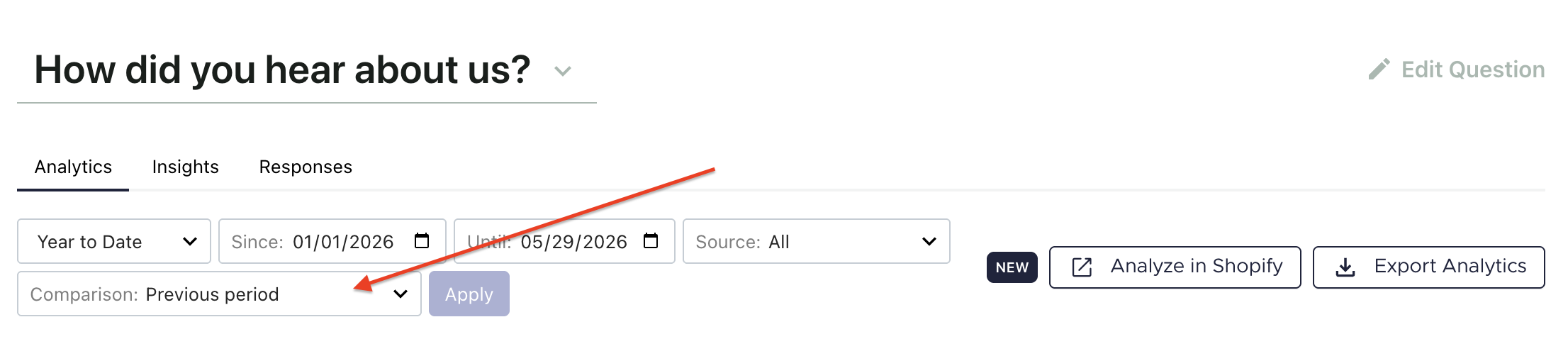
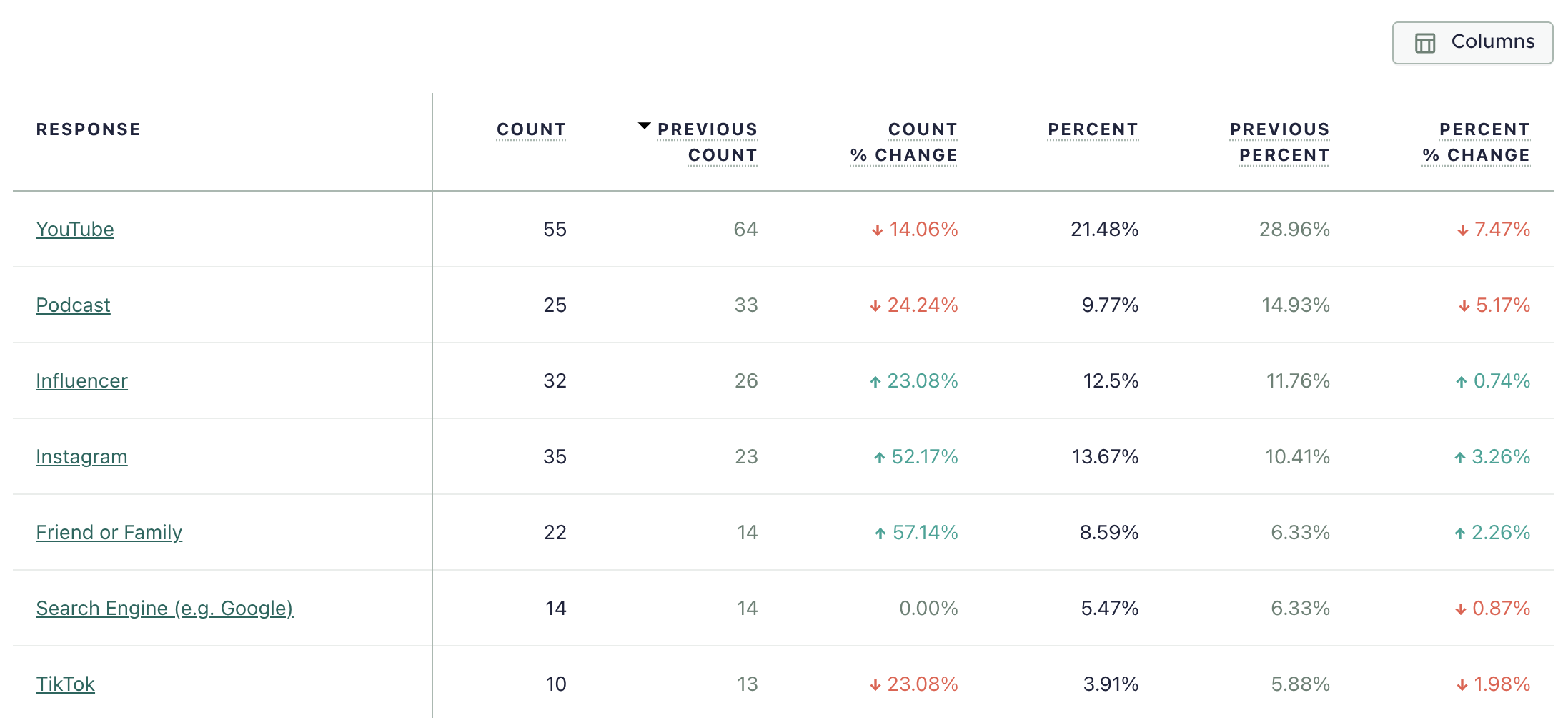
The 'Comparison' dropdown in Analytics lets you compare your current date range against a prior period. When a comparison is active, each metric in the table gains two new columns: the prior period value and the percentage change (delta).
To use comparisons, select a comparison type from the Comparison dropdown and click Apply. The comparison columns will appear alongside your current data. Comparisons apply to the following metrics: Response Count, Response %, AOV, Revenue, Extrapolated Count, and Extrapolated Revenue.
Comparison Types
- Previous Period: Same duration immediately before your selected date range (e.g. May 1–7 compares against April 24–30).
- Previous Year: Same calendar dates one year ago.
- Previous Year (Match Day of Week): Shifted by 52 weeks so days of the week align.
- Before Recategorization: See View Recategorization Impact.
Comparison Columns
- Previous [Metric]: The value from the comparison period.
- [Metric] % Change: Percentage change, calculated as (current - previous) / previous
Note: If there is no data available for the prior period selected, the data will show '--' for previous/delta columns.
Updated 5 months ago
Did this page help you?