

Managed Auto Suggest Lists
Managed Auto Suggest Lists are reusable, centralized lists of response options that power your Auto Suggest questions. Instead of typing (and re-typing) the same podcasts, creators, and influencers into every question that needs them, you maintain each list once - and every question connected to that list stays up to date automatically.
Why use a managed list?
Managed Auto Suggest Lists removes the manual and duplication effort required today for managing response options.
- Update once, everywhere. Add a new show to your Podcast list and it immediately appears as a suggestion on every question connected to that list.
- Lists span like channels. The Influencer list covers Instagram, TikTok, and Facebook in a single place - no more copying the same creator between channel-specific questions.
- Automatic updates via partner integrations. Automatically sync Podcasts from Podscribe and creators from Agentio. Vibe.co and additional partners coming soon.
- Cleaner attribution. When your suggestion lists stay current, more responses match a known source and fewer land in "Other" or free text.
How to use a managed list
- Add response values to your Podcast, YouTube and/or Influencer lists (either one at a time or paste from an existing spreadsheet).
- Connect one or multiple lists to your Auto Suggest questions. See available lists and recommendations on where to connect them here.
The lists
Fairing defines the lists and the channels they cover; you populate them with your responses.
| List | Fields | Connect To |
|---|---|---|
| Podcast | Show name | Podcast & YouTube Follow-up Questions |
| YouTube | Creator name, Handle | YouTube & Influencer Follow-up Questions |
| Influencer | Name, Handle, Channel | YouTube & Influencer Follow-up Questions |
| TV | Channel name | TV Follow-up Questions |
Managing your lists
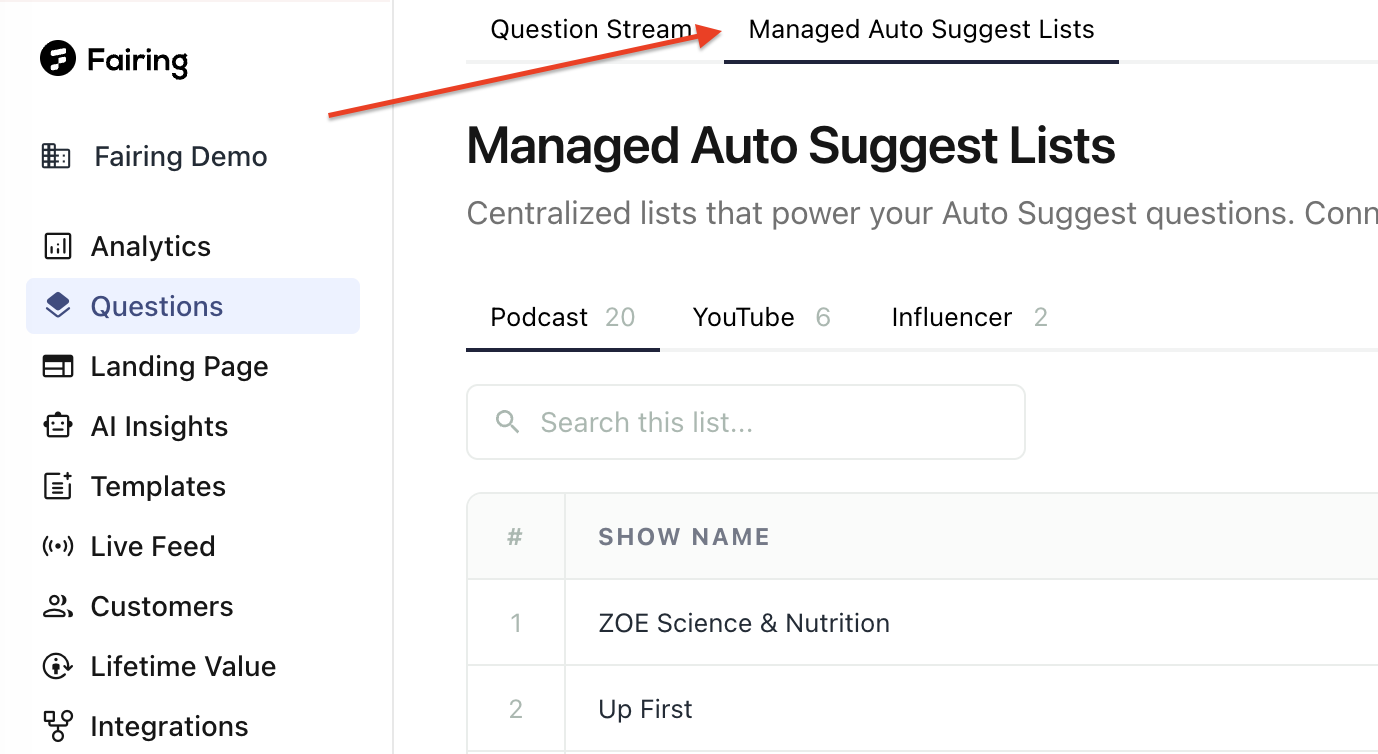
Find your lists under Questions → Managed Auto Suggest Lists. Each list has its own tab. You can add a single response at a time, paste from an existing spreadsheet or connect an integration to automatically power the list.
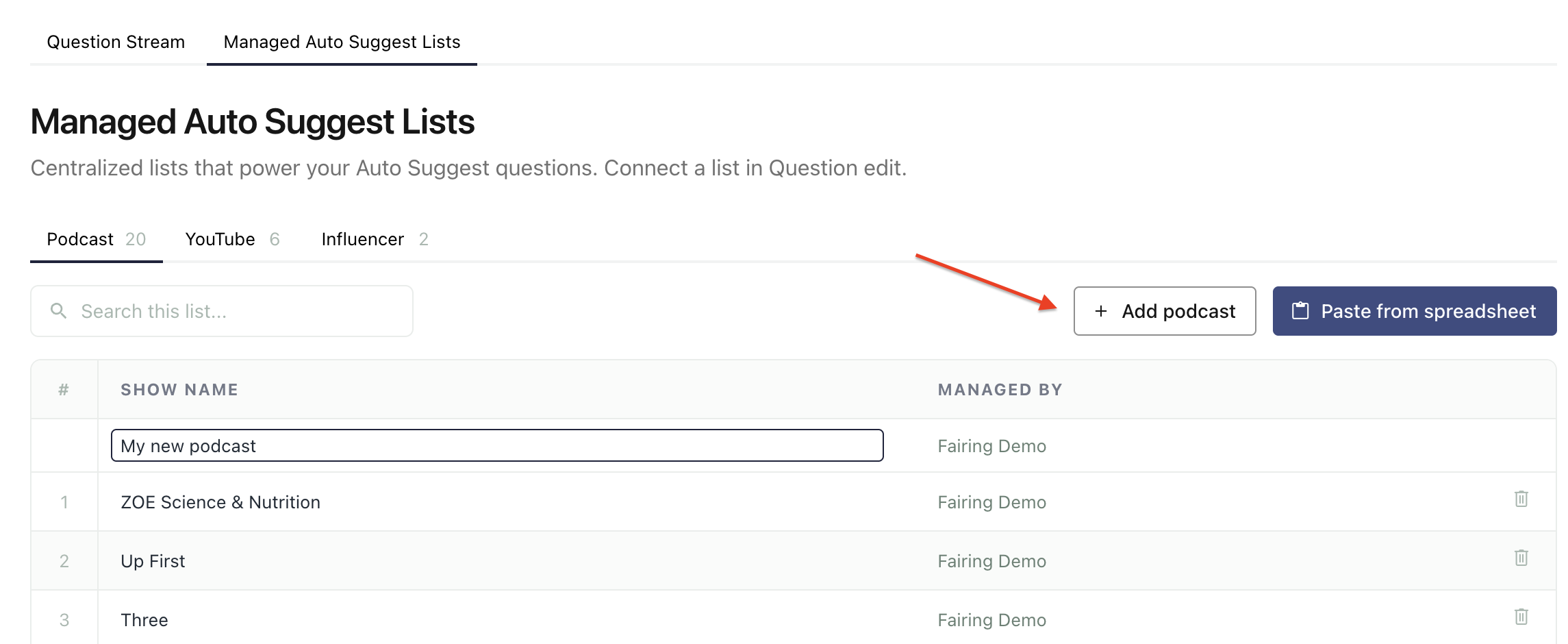
Add responses one at a time
- Open the list you want to edit and click Add podcast (or Add creator / Add influencer).
- A new row appears at the top of the table. Enter the name, and optionally the handle and channel.
- Press Enter or click away to save.
Every row in the table is editable in place - click into any cell, make your change, and it saves when you press Enter or leave the field. To remove a response, use the trash icon on its row.
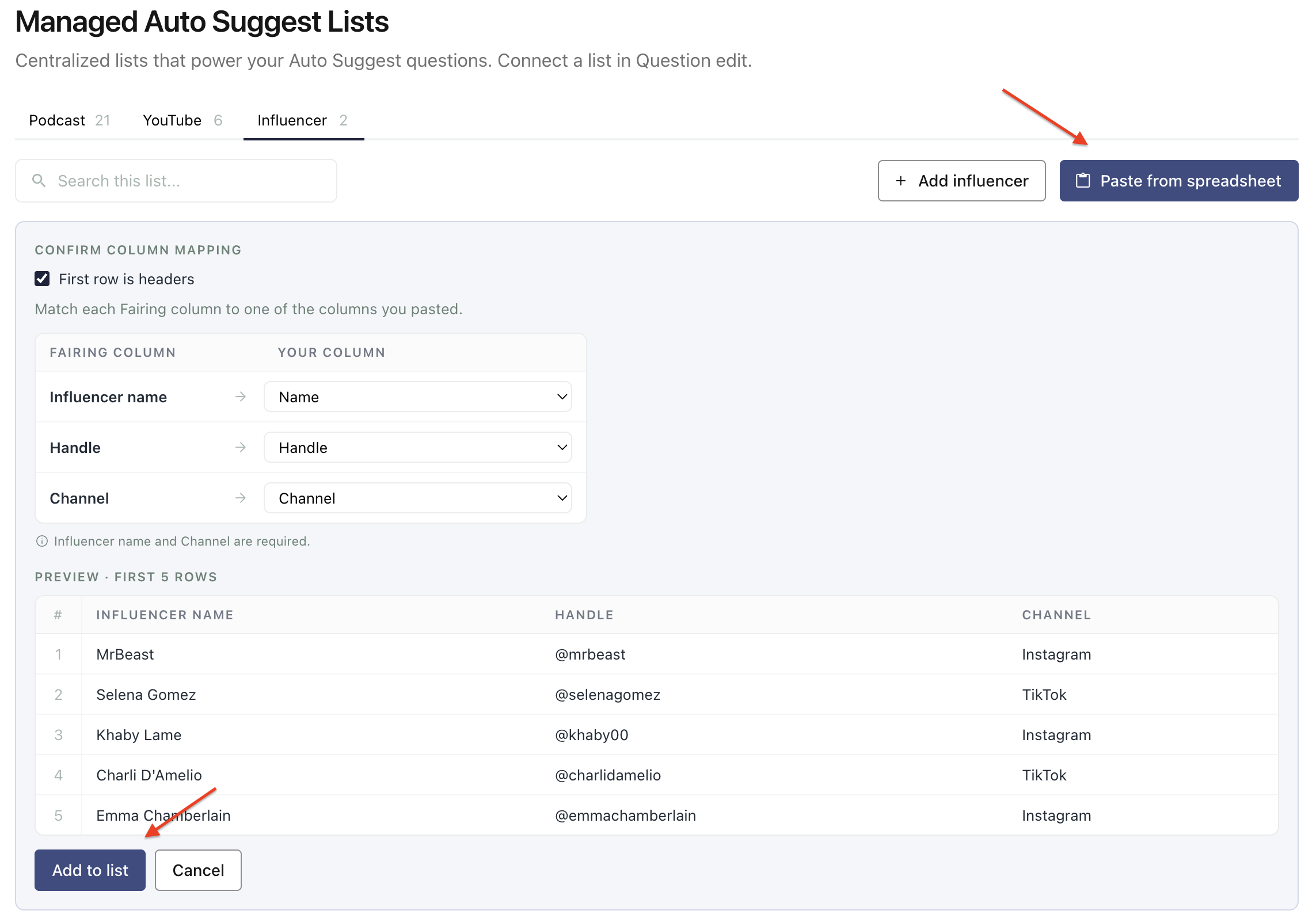
Paste from a spreadsheet
- Click Paste from spreadsheet.
- Copy the relevant columns from your spreadsheet (Google Sheets, Excel, etc.) and paste them into the text area, then click Map columns.
- Confirm the column mapping - tell Fairing which of your pasted columns is the name, which is the handle, and so on. If your paste included a header row, leave First row is headers checked.
- Review the preview and click Add to list.
Automated Integration syncs
See Connect Campaign Sources to take advantage of automated sources available to power your lists.
Automatic checks
- Duplicates are skipped. Rows already in your list aren't added twice. Matching is case-insensitive, so
Morning Brewandmorning brewcount as the same response. - Problem rows are flagged before you import. Rows missing a required field (or naming a channel that isn't part of the list) are called out with their row numbers and the reason, and shown grayed out in the preview. Everything else imports normally.
- Large pastes are capped at 1,000 rows. If your spreadsheet is bigger, split it and paste it in parts.
Search and sort
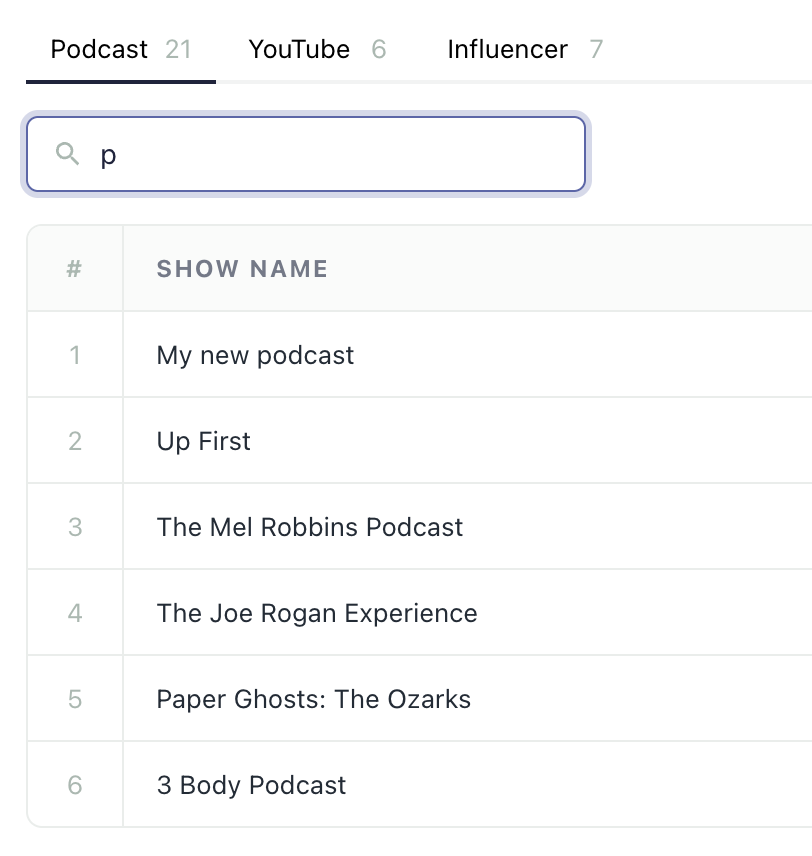
Use the search box to filter a list - searching works against the full displayed response. Click the Name or Handle column headers to sort.
"Managed by" column
Each row will show either show your workspace's name, meaning the response was added by your team, or the row will show the name of a Fairing partner that contributed a list value on your behalf. Partner added rows are still editable by your team.
Connecting a list to a question
Managed lists power your Auto Suggest questions, including Auto Suggest clarification questions (like "Which podcast?" under "How did you hear about us?"). To attach a managed list to a question:
- On your attribution question, click More actions > Edit.
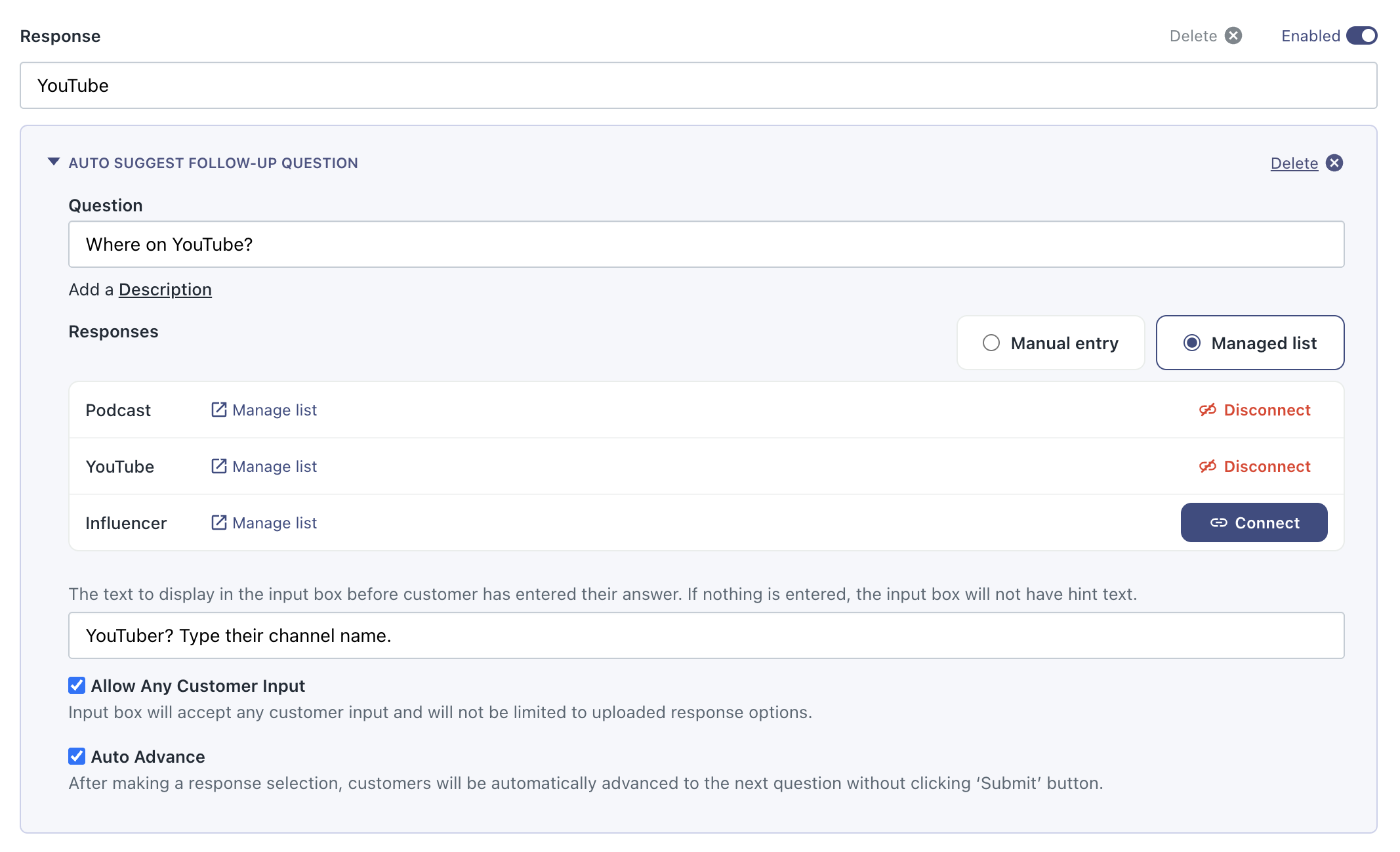
- In the Responses section, locate an existing auto suggest follow up question and switch from Manual entry to Managed list; or create a new auto suggest follow up question and select Managed list.
- Click Connect next to one or more lists. The Manage list link next to each one opens it in a new tab if you need to review or update its responses first.
- Save the question.
Once connected, the list's responses replace the question's manually entered responses. Connecting more than one list serves the combined responses from all of them, with duplicates collapsed.
How it appears to your customers
Nothing changes about the survey experience itself. Customers see the same Auto Suggest typeahead they do today - as they type, matching responses from your connected lists appear as suggestions. Responses with a handle display as Name (@handle), which also helps customers pick the right entry.
Because questions read from the list live, any response you add, edit, or remove is reflected in your survey right away - no republishing needed.
FAQ
Can I share a list across multiple questions?
Yes - that's the point! Connect the same list to as many questions as you like (for example, your new-customer and returning-customer attribution questions). Updating the list updates every question at once.
Can I create my own lists or channels?
Not yet. Fairing defines the available lists and channels. If there's a list you'd like to see, let us know at [email protected].
What happens if I delete a response from a list?
It stops being suggested on every question connected to that list. Responses your customers already submitted are unaffected.
Does deleting a response from one list remove it from others?
Lists are independent - an entry you added to YouTube is separate from the same show added to Podcast, so removing one leaves the other in place.
Is manual entry still supported?
Yes. The Manual entry / Managed list toggle on each Auto Suggest question lets you choose the entry method per question.
Updated about 2 months ago