

Fairing Hosted Landing Page
Use your ESP and a Fairing hosted landing page to survey your customers via email.
Set up a Fairing hosted landing page
Fairing-hosted landing pages let you collect survey responses (most commonly NPS) by sending customers a link via email or SMS. A valid order id must be passed as a URL parameter for the landing page to load correctly and capture responses. The steps below guide you through how to setup your landing page and ensure the URL parameter populates correctly.
Step 1: Add question(s)
- Go to Questions and open the question you want to ask, or create a new one. If you're starting from scratch with NPS, use our NPS question template to get started.
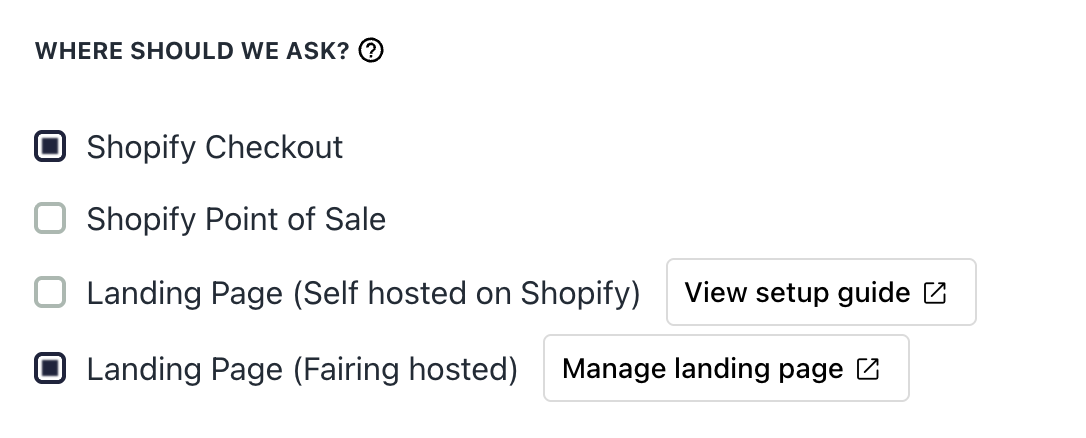
- In the question editor, under Where should we ask, select Landing Page (Fairing hosted).
- Save the question.
Note: All questions you target to Landing Page (Fairing hosted) are served from the same landing page link.
Step 2: Customize (optional)
Open Landing Page in the sidebar.
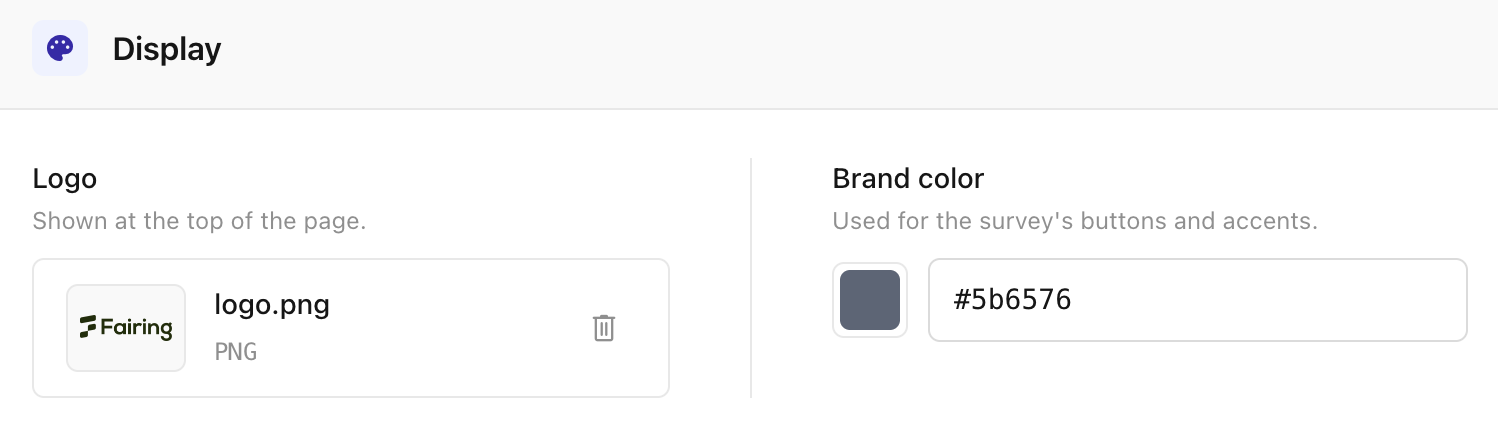
Under Display you can:
- Add a logo - upload a PNG or SVG (max 2MB) to display on the page.
- Set a button color to match your brand.
Step 3: Preview
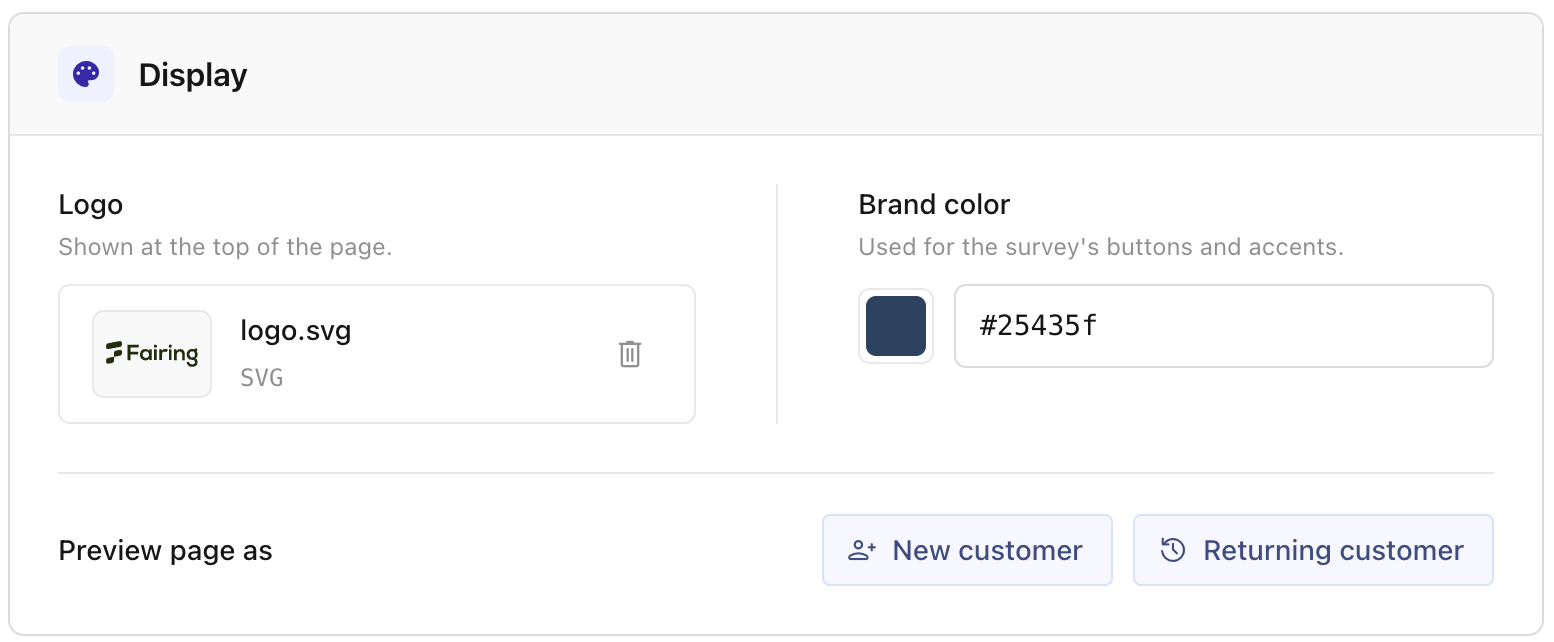
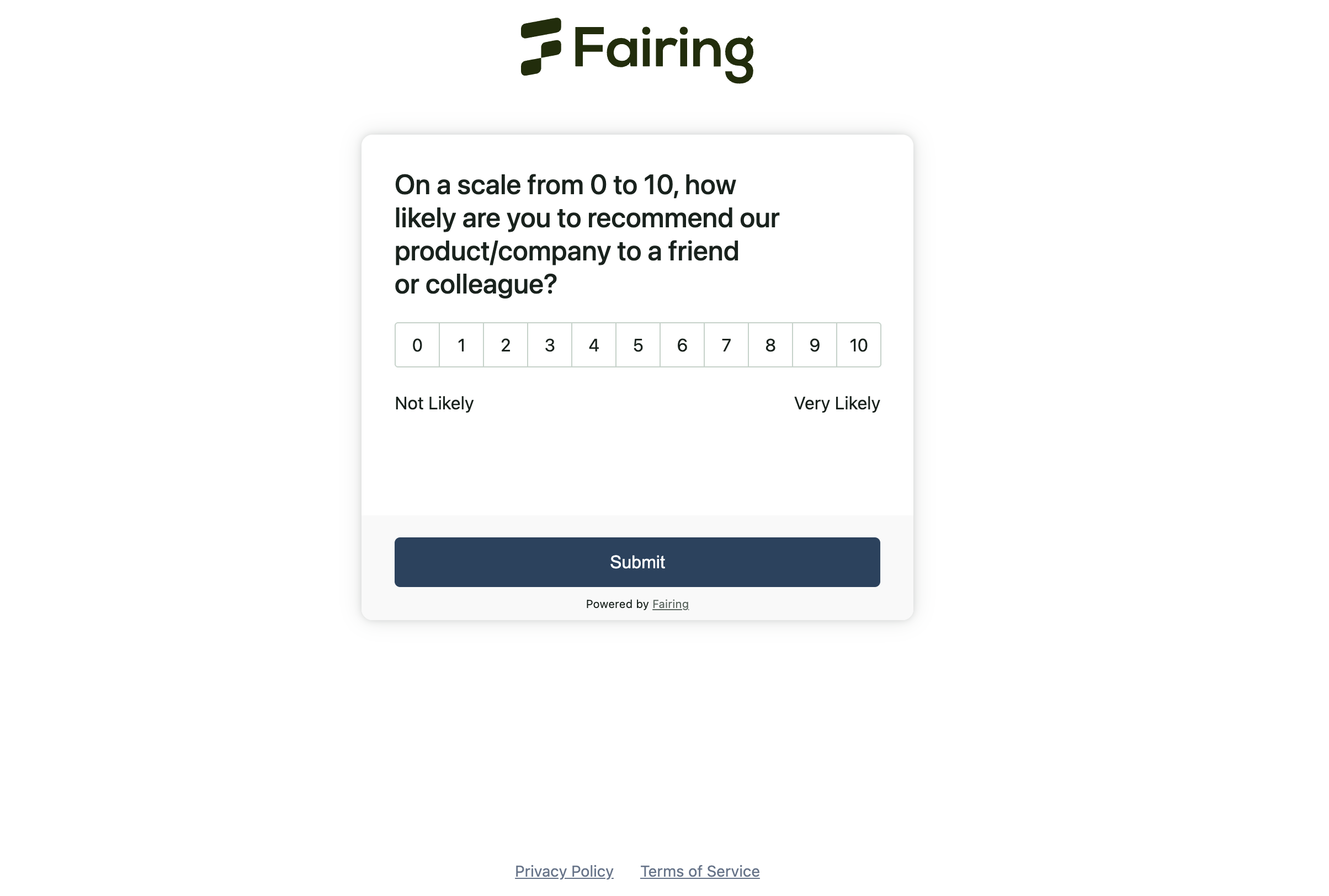
Use the Preview option in the Display section on the Landing Page screen to preview your questions and customizations before going live.
Preview opens your landing page in test mode with a sample order ID so no responses recorded on the preview page will be recorded in Analytics.
Step 4: Generate your embed format
Open Landing Page in the sidebar.
Under Send, you have the option to:
- Deliver your link Via email or Via link
- If you choose Via email you have the option to select Klaviyo or Other as your ESP.
- If you choose Klaviyo, the order id variable will be auto-populated in the embed format.
- If you choose Other, you will need to manually replace the order id variable in the embed format with your ESP's order id variable.
- If you choose Via email, you have the option to embed NPS score buttons or a Single CTA button in your email.
- In order to choose NPS score buttons, your NPS question must be first of the questions that will show on your landing page.
- If you choose NPS score buttons, the customer will select the NPS score directly from their email - they will then be directed to your landing page to either submit additional responses or see your success message.
Step 5: Set up your email/SMS flow
If your ESP is not Klaviyo, modify the steps below to match the options available in your ESP. If you run into any issues or have questions, reach out to [email protected].
- In Klaviyo, got to Flows >> Create Flow
- Click Build your own, name your flow and click Create flow

- Select Placed Order as the trigger, then Save and Confirm and save
Important: You must select "Placed Order" as the trigger. Klaviyo only passes the order ID to flow emails when triggered by the Shopify Placed Order event. If you use a different trigger, the survey link won't include the order ID and responses won't be tied to specific orders.
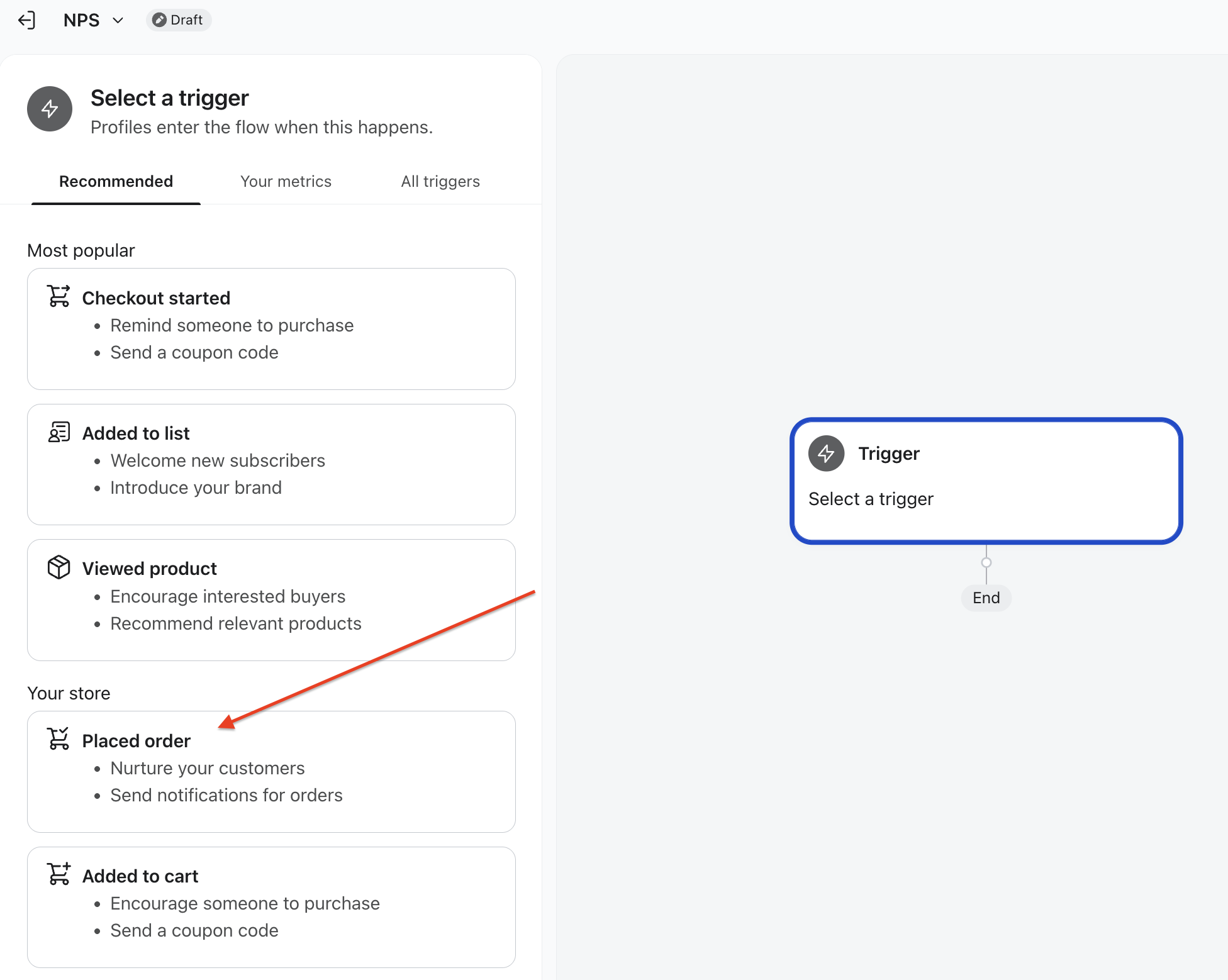
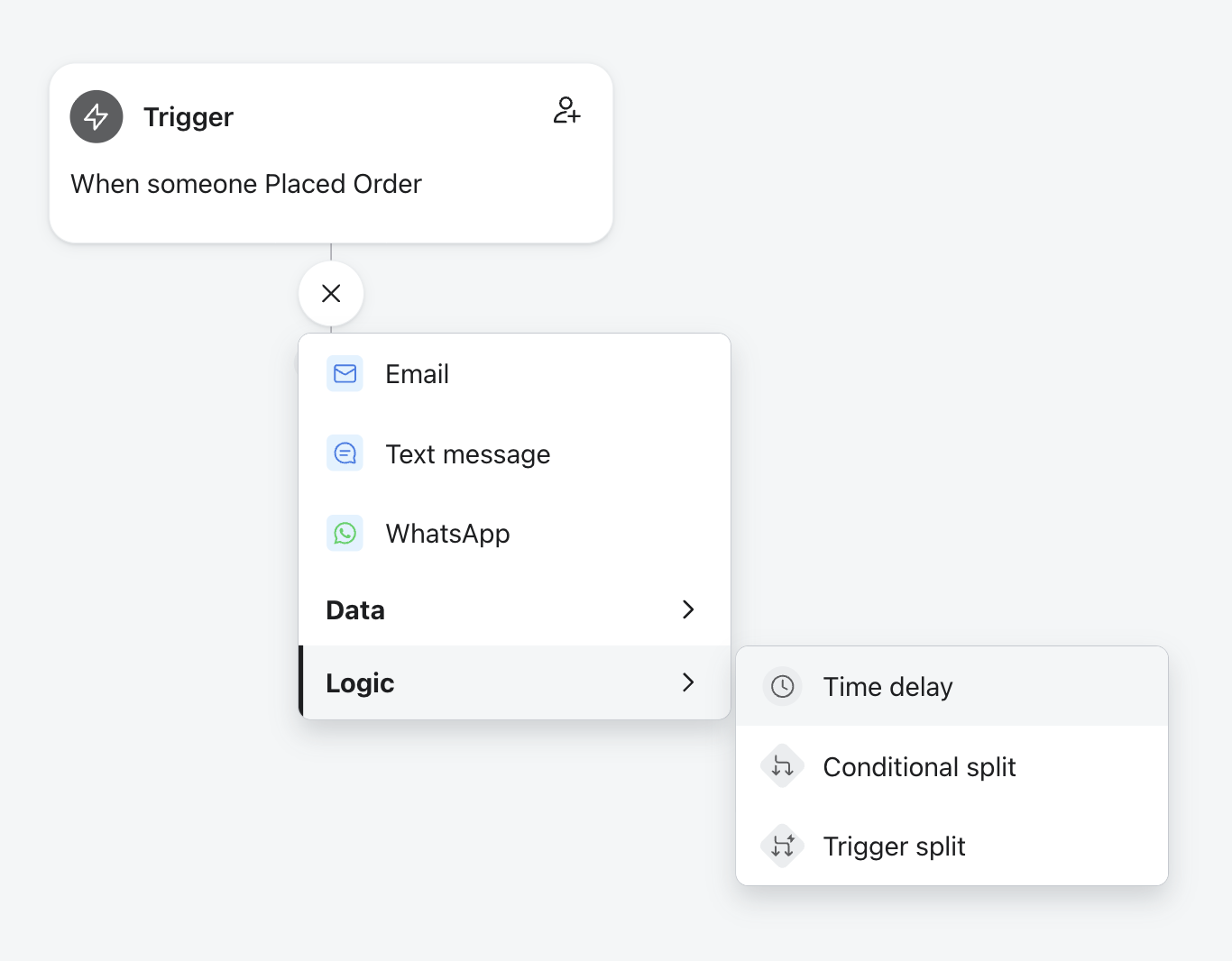
- Add a Time Delay action after the Placed Order trigger (Plus >> Logic >> Time delay). Configure the time delay and click Save. We recommend 10-15 days to ensure the product has been received before sending your NPS question.
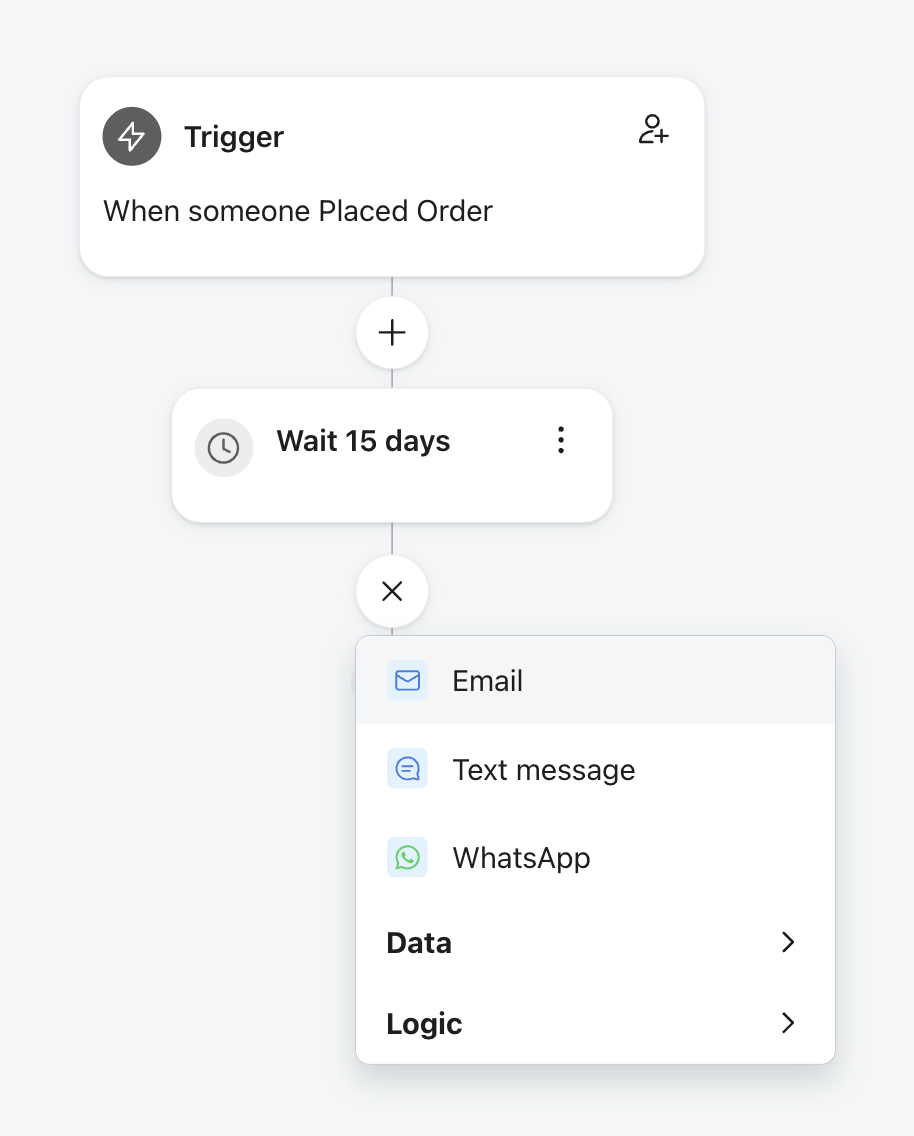
- Add an Email action after the Time Delay.
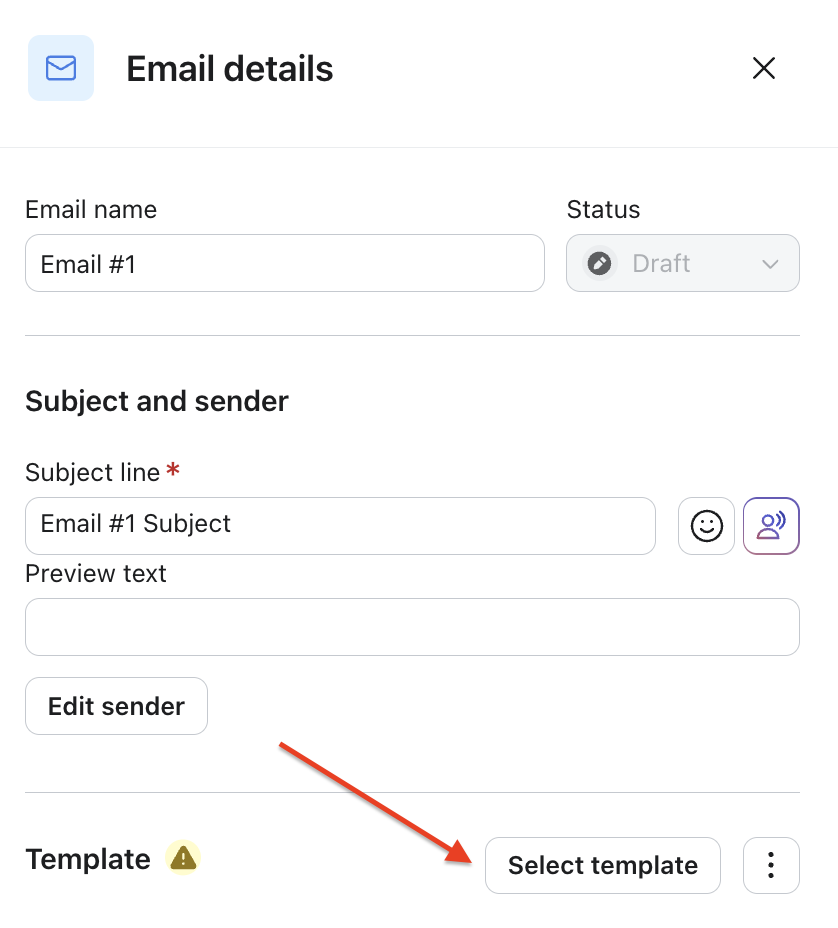
- Click Set up email. In Email details, set up your Email name, Subject line and Preview text.
- Click Select template and either select an existing template or click Create to create one from scratch.
- Add an HTML block to your email template. This is where the NPS score buttons or Single CTA button will display.
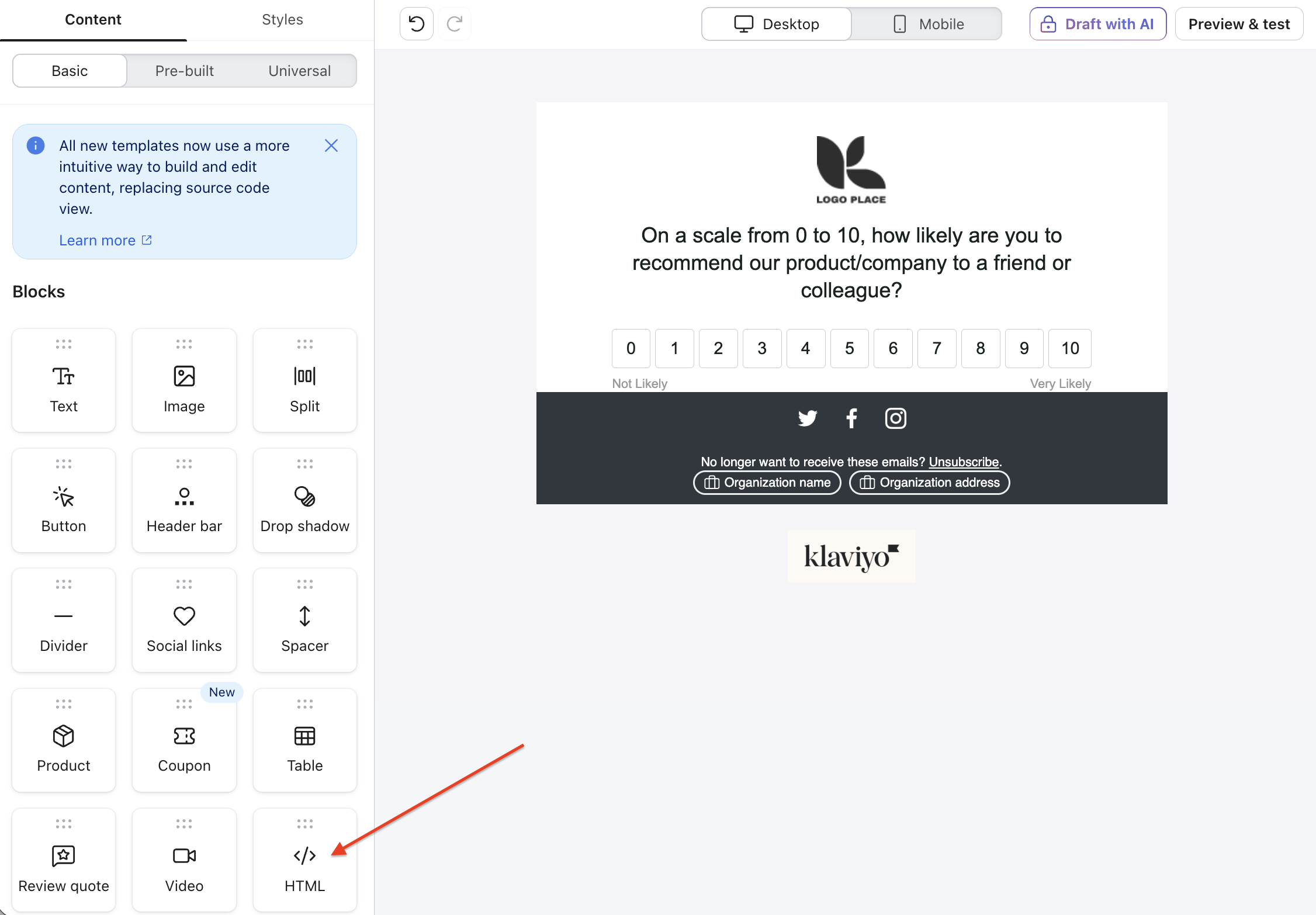
- Copy the HTML from Step 4: Generate your embed format and paste it into the Content section in your HTML block in the email editor in Klaviyo.
- Change the email status to Live and click Save.
We always recommend testing your email flow end to end to ensure the Fairing HTML is rendering correctly and directing customers to your landing page as expected.
FAQ
Can I ask the same questions at checkout as my landing page?
Yes! You can target a question to both Shopify Checkout and Landing Page (Fairing hosted) and it will show in both places. If the question was already answered at checkout, it will not be re-asked when sent via the landing page (if the question is tied to the same order in both places).
Can I ask multiple questions on my landing page?
Yes! Target as many questions as you'd like to Landing Page (Fairing hosted) - they will show one after another.
Can I have more than one Fairing hosted landing page?
If you're interested in having more than one landing page, reach out to [email protected].
Troubleshooting
I don't see any questions - I only see my default success message
A response has either already been recorded for that order ID or the order ID parameter is missing altogether from the URL. If the order ID is missing or invalid, check that your email platform's order ID merge tag is correctly mapped in the link. If the order ID is missing or invalid, a message is logged to the browser console to help you diagnose the issue.
Nothing shows on my landing page
Confirm at least one question is targeted to Landing Page (Fairing hosted) and that the link you're using is the one shown on the Landing Page screen.
Updated 2 months ago