

MCP
Ask questions about your post-purchase survey data in plain English, right inside Claude.
Overview
MCP (Model Context Protocol) is a secure connection between Fairing and AI tools like Claude. Once it's set up, you can ask Claude about your survey data in plain language - no exports or SQL required.
Behind the scenes, Claude reads your live Fairing data, so the answers are always current.
When you connect, Claude can only see data for workspaces you have access to. You will sign in with Fairing OAuth - you will never paste a password or API key directly into Claude - and you can disconnect at any time.
Set up Fairing in Claude
Setup happens once. After that, Claude stays connected to Fairing and you won't repeat this. Fairing isn't in Claude's built-in "Connectors" list yet, so either a Claude Admin can add Fairing to your Claude app or you can use the Fairing MCP directly from the Terminal.
App Setup
Note: You must be an Admin on the account to perform the below steps.
- In the Claude app, go to Customize > Connectors.
- Click Add Connector > Add Custom Connector.
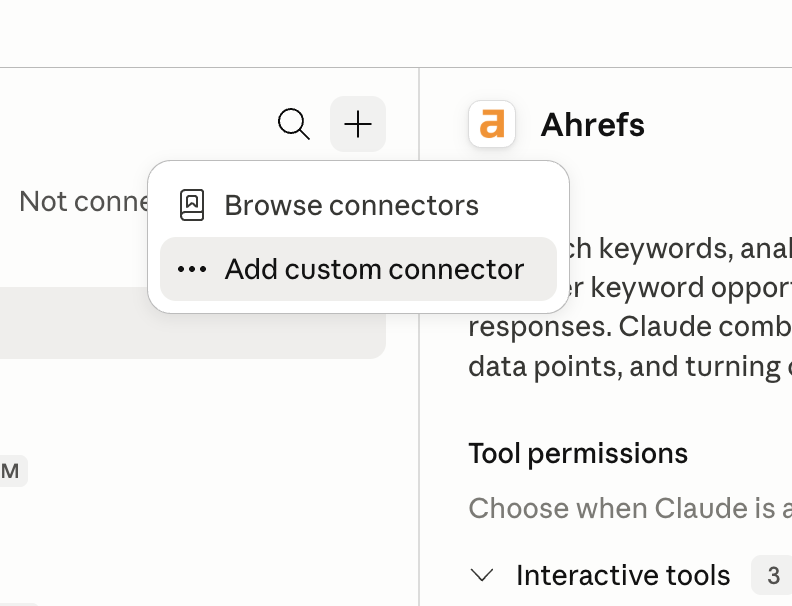
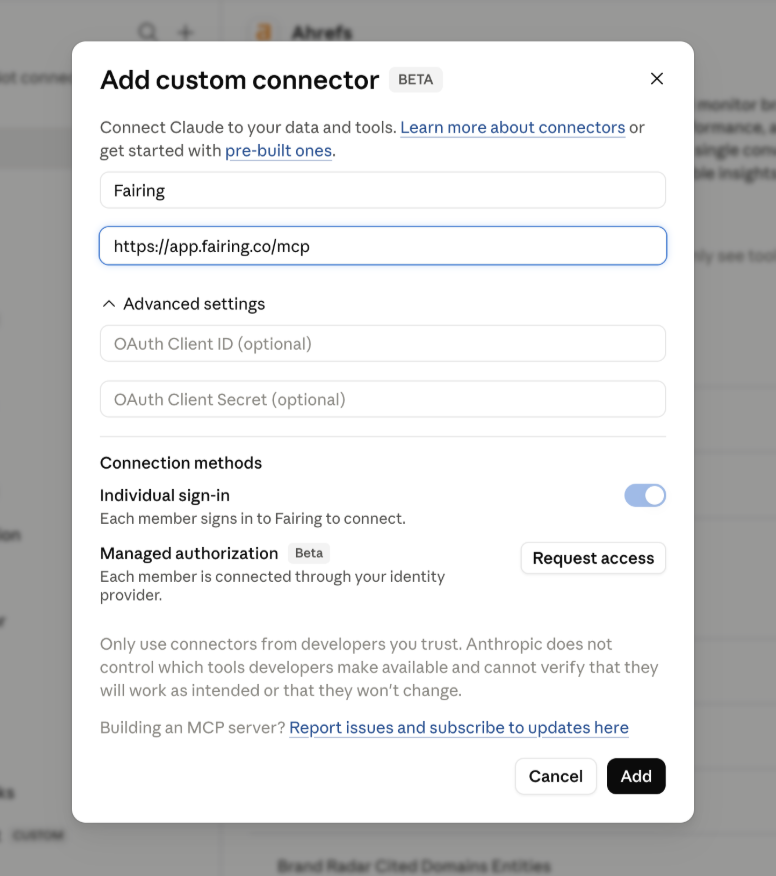
- Title the connector Fairing and enter
https://app.fairing.co/mcpas the URL. Click Add.
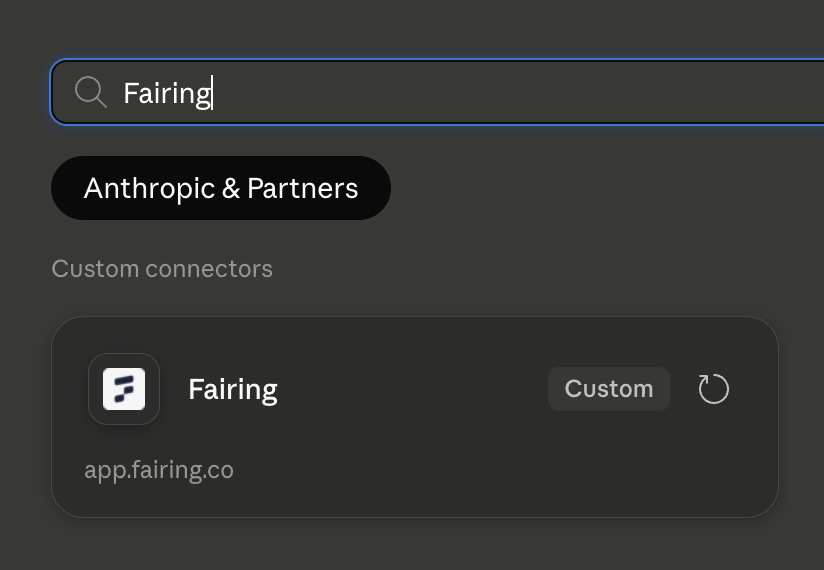
- Now Fairing will show up for other team members to connect when they search for Connectors. After the Admin has added Fairing, other team members may need to quite and re-open Claude for Fairing to show up as a connector.
Switching between workspaces
Right now, you can only be connected to one workspace at a time. To connect to a different Fairing workspace:
- Search for Fairing in your Connectors.
- Click Disconnect. Once disconnected, click Connect.
- You will be prompted to re-authorize and can select a different workspace to approve. Once approved, Claude will now use that workspace's data.
Disconnect Fairing
To disconnect Fairing, search for Fairing in your Connectors and click Disconnect.
Terminal Setup
- Open your Terminal: On a Mac: press
Cmd + Space, type Terminal, press Enter. - Add Fairing: Copy the below, paste into your terminal and press Enter -
claude mcp add --transport http --scope user fairing-mcp https://app.fairing.co/mcpThis tells Claude where Fairing lives. The --scope user part makes Fairing available in every Claude project on your computer (recommended).
- Load your MCP connections: Type
claudeinto your terminal and press Enter. Once in Claude (in the Terminal), type/mcpand press Enter. - Log in to Fairing: A list of connections appears. Then -
- Select
fairing-mcp(it shows "Needs authentication"). - Choose Authenticate.
- Your browser opens to Fairing's sign-in page.
- Log in and click Approve.
- The page sends you back and the status flips to connected and you're ready to start using the Fairing MCP!
- Select
Switching between workspaces
Right now, you can only be connected to one workspace at a time. To connect to a different Fairing workspace:
- In a Claude session, type
/mcp. - Select
fairing-mcp. - Choose Re-authenticate.
- Your browser opens to Fairing - sign in to (or select) the store you want to work with, and click Approve. Claude will now use that workspace's data.
Disconnect Fairing
To disconnect Fairing from your Claude account. Run:
claude mcp remove fairing-mcp -s user(Use -s local instead if you added it without --scope user.)
What you can do
Tools are grouped here by what the user is trying to accomplish, not by tool name - the underlying surface evolves continuously. Disconnect and reconnect your client to pick up new tools.
- Discover your survey questions: See every question running on your store, so you (and Claude) know what's available to analyze without looking up any IDs.
- Analyze response distribution and order value: Break any question down by response count, total order value, and average order value (AOV); and compare date ranges ("this month vs. last month").
- Read and summarize customer responses: Pull individual response, including open ended write-ins and "Other" responses, and summarize the themes.
- Send feedback to the Fairing team: Flag a missing capability, a confusing result, or a wrong-looking number from inside the chat, with the conversation context attached. We are regularly reviewing the feedback sent back from Claude to improve the MCP.
FAQ
- Do I need to be technical to use this? No! After setup, using the Fairing MCP just uses plain-English chat.
- Will Claude change anything in my Fairing account? No. The beta is read-only - it reads survey data to answer questions and can't edit surveys, responses, or store settings.
- Can Claude see customer personal information? Personal data in responses is redacted before it reaches Claude.
- Which AI tools work? Claude today (Terminal, desktop, and web). Other MCP-compatible tools are coming.
Updated about 2 months ago