

Response Rules
Response Rules
Response Rules let you clean up the free-text answers in your survey data. When a customer types "IG" or "tik tok" in the Other box, you can create a rule that reorganizes those responses under the right option, like Instagram or TikTok. A rule then applies to all historical matches and every new response match that comes in.
The Rules tab only shows on top-level single response questions.
- Go to Questions and open Analytics for the question you want to clean up.
- Click the Rules tab.
The date range at the top work the same way they do on the other tabs, and they carry over when you switch between tabs. The search box filters the rows on whichever tab you're on.
Response Rule Tabs
| Feature | What it does |
|---|---|
| Suggested | Proposes a rule for typed answers that come up 3 times or more. |
| Unclassified | Groups every typed Other answer on a question, with how many orders gave it. Create your own rules here. |
| Active | Set of existing rules for that question. |
Unclassified responses
The Unclassified tab lists every typed answer on the question that doesn't have a rule, grouped by what the customer typed. Matches shows how many orders in your date range gave that answer.
The Original columns are read-only. They always show what the customer actually typed.
Create a rule
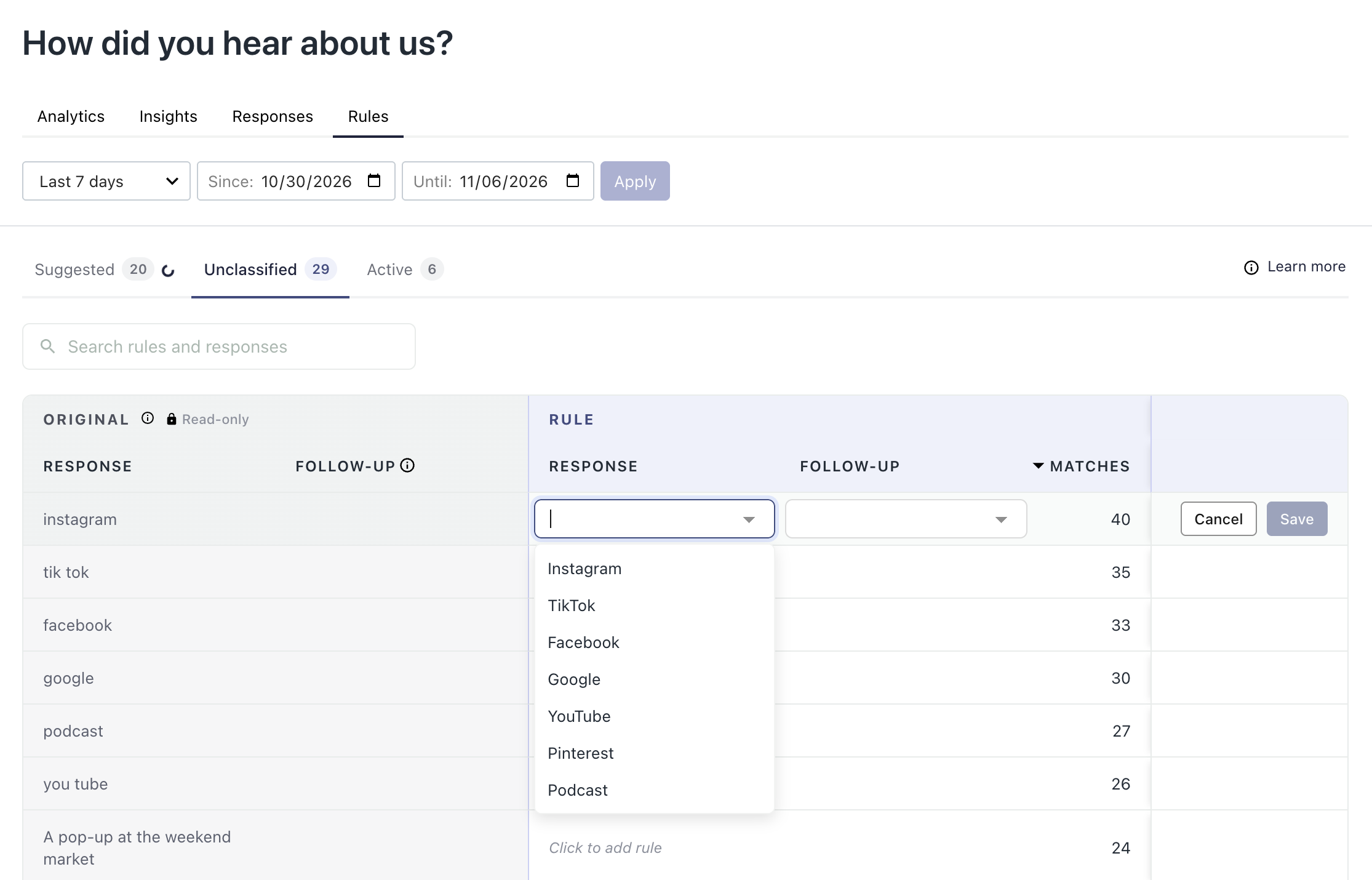
- On the Unclassified tab, find the answer you want to reclassify.
- Click Click to add rule in that row.
- In Response, start typing and pick the response you want to recategorize to.
- If the option has a follow-up question, pick a Follow-up too. This is optional.
- Click Save.
The rule moves to the Active tab and starts applying right away, to historical responses as well as new ones.
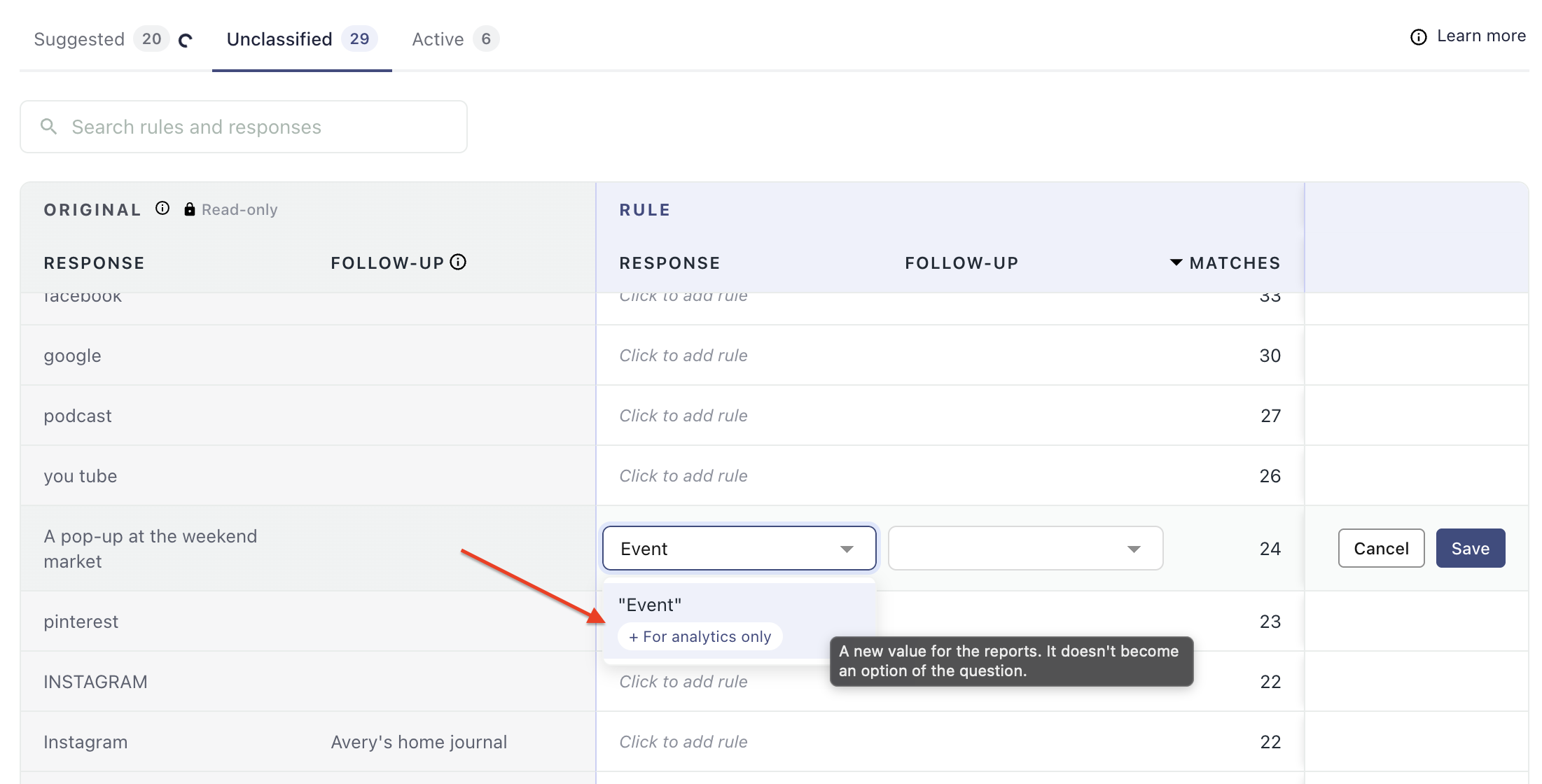
Create 'Analytics Only' Categories
While creating rules, you are able to create response categories that show on analytics only, and are not adding to the customer facing survey. For example, if a handful of customers typed "Saw it on Reddit", but Reddit isn't one of your options, type the value you want, and select + For analytics only in the drop down.
An analytics-only value groups those responses together in your analytics reporting. It does not add a new option to your question, so customers won't see it in the survey.
Suggested rules
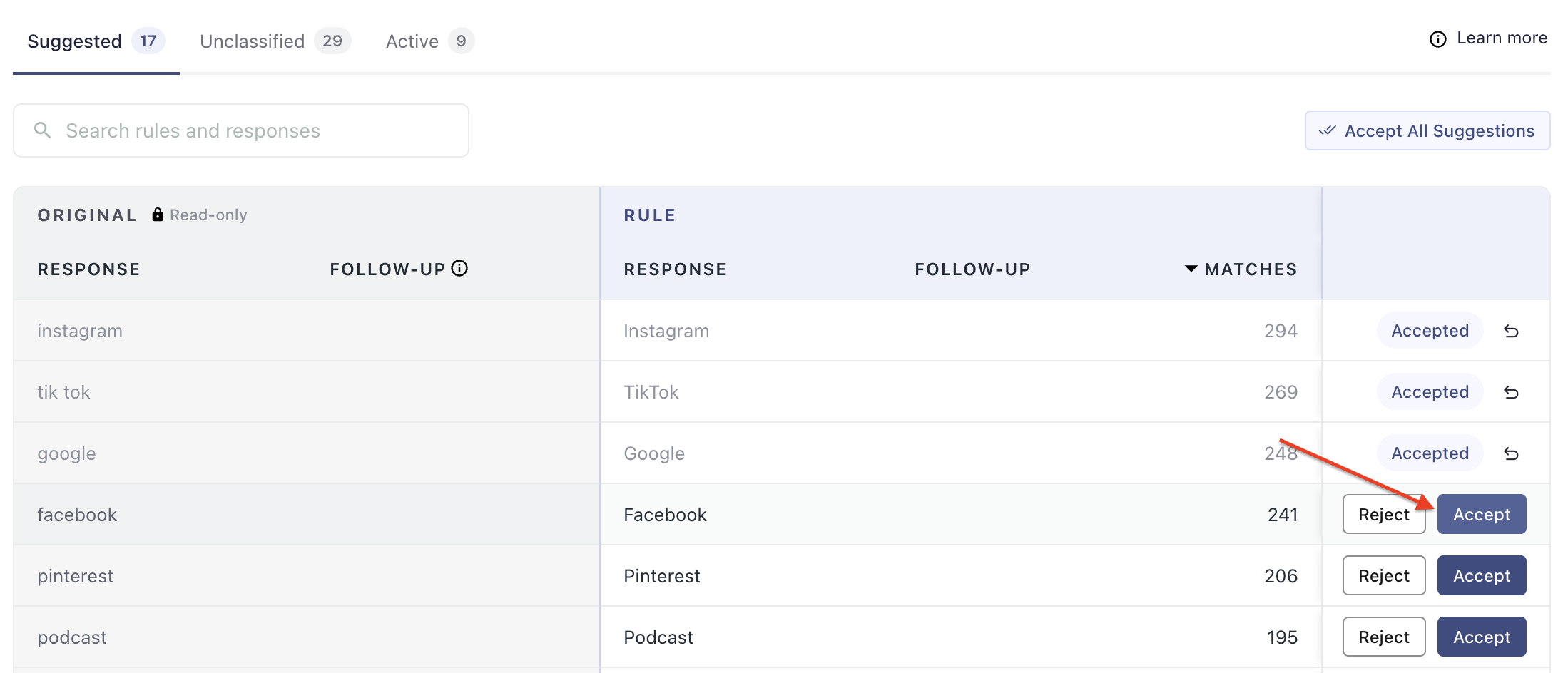
The Suggested tab automatically creates suggested rules for you to review. When a typed answer comes up 3 times or more, we look for where it most likely belongs and suggest a rule.
For each suggestion you can:
- Accept it as it is. It becomes an active rule.
- Edit it first. Click the suggested response or follow-up, change it, and click Accept.
- Reject it. It won't be applied, and the answer stays in Unclassified for you create a rule later.
Active rules
The Active tab lists every rule on the question, with how many responses it matches in your date range, when it was created, and who created it.
To change where a rule points, click its Response or Follow-up, pick a new value, and click Save. The original answer stays the same, and the change applies to every matching response.
Each typed answer can only have one rule. If you need it to go somewhere else, edit the existing rule.
Undo a rule
Click the undo icon at the end of a rule's row, then click Confirm.
Undoing a rule:
- Puts every matching response, including historical ones, back to its original answer, and moves that answer back to Unclassified.
- Stops reclassifying new responses.
Nothing is lost. The original answers were never changed, so you can create a new rule for them at any time.
What doesn't change
Response Rules never edit or delete the answers your customers gave. The original answer is always kept, and you'll always see it in the Original columns. Rules change how responses are counted in your reporting, not what was collected.
Updated about 18 hours ago